Case study · Docusign Experience Design · 2019–2026
Accessibility across Experience Design
Training, component specs, and hands-on partnership that brought accessibility into the everyday work of Docusign’s product teams.
- Everyproduct team at Docusign partnered
- 20+component and pattern specs
- 14+products tested with Fable testers
- Allteams welcome in Champions
A sample of the work, from training to shipped patterns.
Overview
Accessibility shouldn’t wait for an audit. I try to show up early, in the files, specs, and prototypes where decisions get made.
The problem
Accessibility know-how lived with a few specialists, and questions often came late, after designs were set and fixes cost more.
The goal
Make accessibility part of how every team already works: give designers what they need in the moment, build it into our components, and test with disabled people early.
My part
- Made training designers could use right away, like A11y Snacks.
- Helped open the Accessibility Champions program to everyone.
- Wrote accessibility specs for components and patterns.
- Partnered with product teams on annotations, prototypes, and fixes.
Learning together
-

Workshops
Annotation Deep Dives
I ran more than 12 workshops that revised every annotation in A11ykit. We reviewed real work from designers and decided what was required, what was optional and what needed improvement or more clarity.
-

Training
A11y Snacks
Bite-size Figma files with everything designers need to make one pattern accessible. The first snack, Table Headers, covers what it takes to build an accessible table.
-
Community
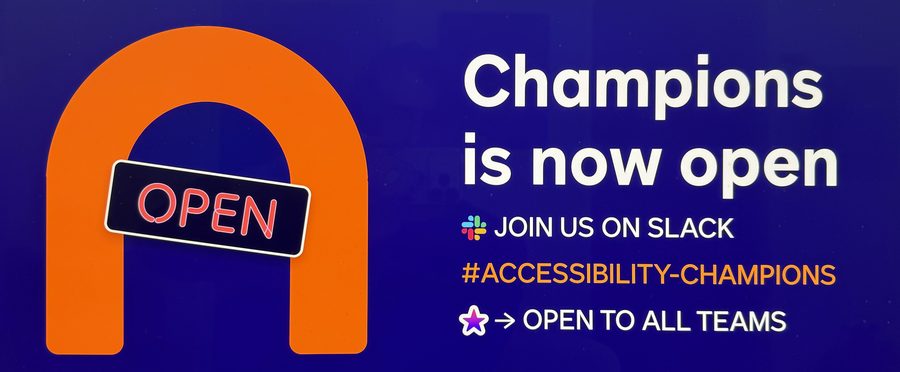
Champions, now open to all
We opened the Accessibility Champions program beyond engineering, so anyone at Docusign can join. I helped create the branding and supported the programming, led by Lamar Jordan.
Workshops and office hours
- Facilitated a role-play workshop at Docusign’s first accessibility offsite (June 2025). Each accessibility engineer stepped into the shoes of a designer, product manager, program manager or product team engineer. It uncovered our biases and helped us redesign our tools and services.
- Led live A11ykit 1.5 testing in a sandbox library with the accessibility team, the Design Systems team and XD designers. What we found led to changes before launch.
- Took part in weekly accessibility office hours for our partner teams.
Patterns with accessibility built in
-

Design systems
Calendar component spec
An accessibility spec for the date picker, made with A11ykit. Every control has a role, an accessible name, and live updates where they help, from the day grid to the month and year pickers.
-

1DS
Skip links header
A skip links pattern for the 1DS header, so keyboard and screen reader users can jump straight to the first workflow step or the zoom controls.
-

Web Forms
Currency fields
I collaborated on currency patterns for Web Forms, from how the amount and currency type are labeled together to settings like the decimal separator.
Testing the combobox
I led a v0 prototype to test variants of the combobox with Fable testers. What we learned moved the Workflow builder team forward with a new, accessible pattern.
Four studies over one week covered the different ways people use a combobox, so we weren’t designing for one kind of user.
- Screen readers
- Alternative navigation
- Cognitive
- Mixed assistive tech
Side by side with product teams
A chart with a table inside
A chart should never be the only way in. I designed a data table alternative, one menu choice away, and worked with the Principal Engineer to bring it to life.
Every number in the chart is also in a real table, with headers, that a screen reader can move through cell by cell.
Getting there took sticky notes and options with the Navigator team: how people get from a chart card to more detail, and what a keyboard or screen reader user lands on first.


-

Annotations
Recommending accessible names
I annotate alongside designers and suggest accessible names, then loop in content design to get the nouns and verbs right.
-

Growth
Annotations for growth
Headings and focus order for a download dialog, so engineers know what a screen reader announces and where focus goes next.
-

Docusign IAM
Completed, with a screen reader
Testing the Completed experience with a screen reader turned up issues like a search field announced as “Search Search.” I worked with the team to make it clearer.
-

Signing
Focus that keeps your place
Fixing where focus lands while people add fields to a document, with a link to return to the top of the page.
Outcome
Designers, product managers, content designers, engineers, and researchers all helped carry accessibility forward. That shared ownership is what I’m proudest of.